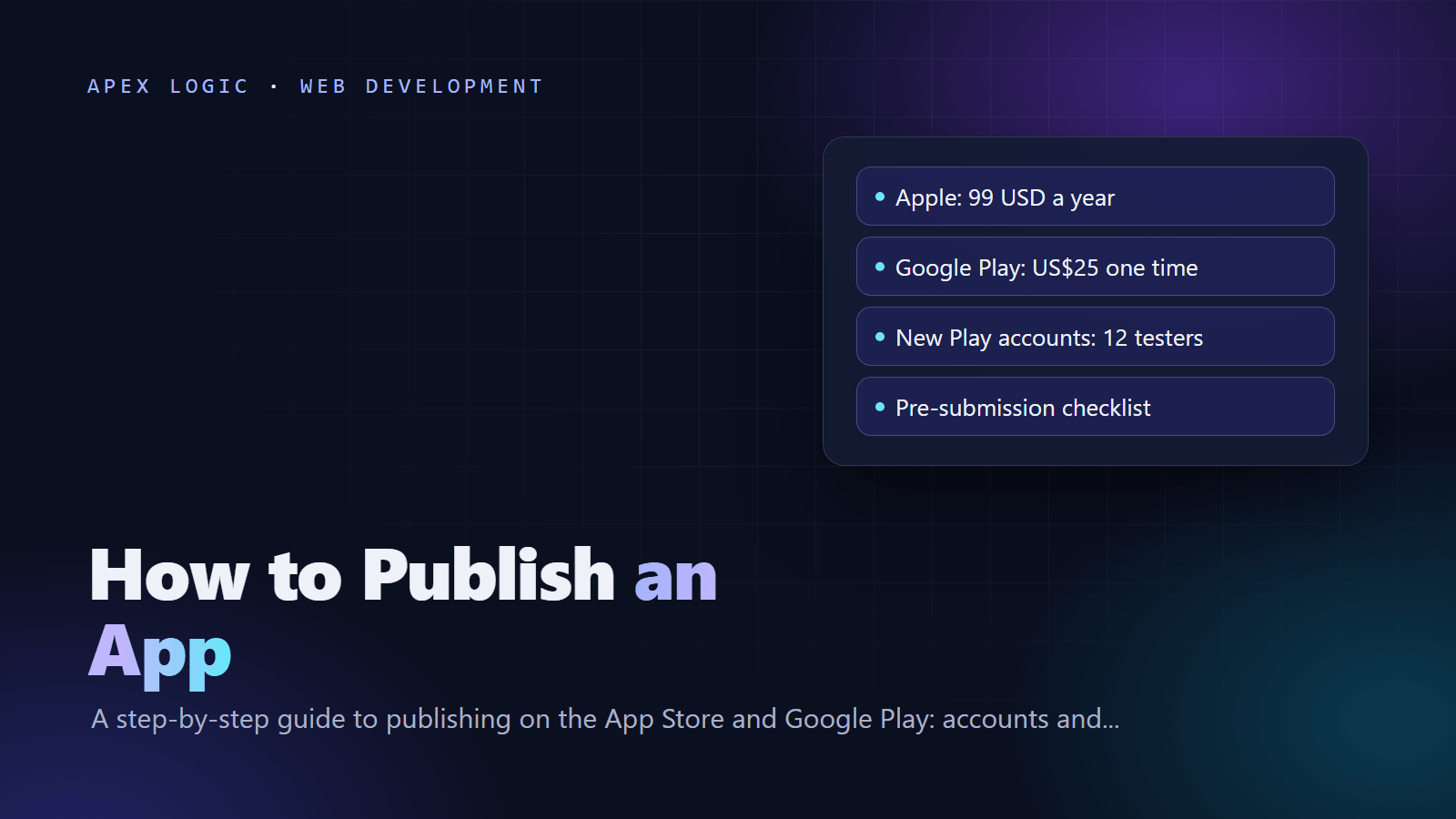
To publish an app, you need a developer account on each store, a signed release build, a store listing with privacy disclosures, a round of testing and an approved review. As of July 2026, the Apple Developer Program costs 99 USD per membership year and a Google Play Console account costs a one-time US$25. Apple says that on average 90% of submissions are reviewed in less than 24 hours, while Google says reviews for some developer accounts can take up to seven days or longer.
One rule catches many first-time Android publishers: a personal Google Play account created after 13 November 2023 must run a closed test with at least 12 testers, opted in for the last 14 days without a break, before it can apply for production access. Start testing at least two weeks before launch. The steps below follow the order you will work in, with a full checklist at the end.
App Store vs Google Play publishing at a glance
Requirements as of July 2026.
| Step | Apple App Store | Google Play |
|---|---|---|
| Account fee | 99 USD per membership year, with waivers for eligible nonprofits, accredited educational institutions and government entities | US$25, one time |
| Build | Xcode 26 or later with the iOS 26 SDK | Android App Bundle targeting API level 35 or higher |
| Privacy | App Privacy details and a privacy policy URL | Data safety form and a privacy policy, even if you collect no data |
| Beta testing | TestFlight: 100 internal and 10,000 external testers | Internal (up to 100 testers), closed and open tracks |
| New account rule | No equivalent rule | Personal accounts: 12 testers for 14 days |
| Review time | On average 90% in under 24 hours | Up to seven days or longer for some accounts |
Step 1: Create your developer accounts
Apple Developer Program
- Individuals need an Apple Account with two-factor authentication turned on, in their legal name.
- Organizations must be a legal entity (no DBAs or trade names) with a D-U-N-S Number, a work email and a public website on the company domain. The person enrolling must have authority to sign legal agreements.
- Fee: 99 USD per membership year as of July 2026, shown in local currency at checkout. Eligible nonprofits, accredited educational institutions and government entities can request a waiver.
- Selling: to sell the app or offer in-app purchases, the Account Holder must also sign the Paid Apps Agreement in App Store Connect.
Google Play Console
- Sign up with a Google Account (you must be at least 18), accept the Developer Distribution Agreement and pay the US$25 fee by credit or debit card (not prepaid).
- Choose a personal or organization account; both have the same features. Organization accounts need a D-U-N-S number, and Google says to choose one for financial, health, VPN and government apps.
- Expect identity checks: you may be asked for a government ID and a card in your legal name. New personal accounts must also verify access to an Android device through the Play Console mobile app.
Open both accounts in the business's name and add developers as users; our guide to hiring a development agency explains why ownership matters.
Step 2: Prepare a release build
- Permanent IDs. Apple does not let you change the bundle ID after you upload a build, and Google Play treats an upload with a new application ID as a completely different app.
- iOS SDK. Since 28 April 2026, apps uploaded to App Store Connect must be built with Xcode 26 or later using the iOS 26 SDK, or the matching SDK for other Apple platforms.
- Android target API. As of July 2026, new apps and updates must target Android 15 (API level 35) or higher, and Google has announced Android 16 (API level 36) from 31 August 2026, with extensions to 1 November 2026. If you are launching now, target API level 36.
- Android format. New apps must be published as an Android App Bundle (.aab), which leaves APK generation and signing to Google Play.
- Build numbers. Every upload needs a new, higher build number, and Google Play refuses a versionCode you have already used.
Where the version and build numbers live, with illustrative values:
# Flutter, pubspec.yaml: version name, then + build number
version: 1.3.0+12
// Native Android, app/build.gradle.kts
android {
namespace = "com.example.myapp"
compileSdk = 36
defaultConfig {
applicationId = "com.example.myapp"
minSdk = 24
targetSdk = 36
versionCode = 12
versionName = "1.3.0"
}
}Expo uses version, ios.buildNumber and android.versionCode in its app config; native iOS projects use the Version and Build fields in Xcode.
Step 3: Create the store listing
Field rules as of July 2026.
App Store Connect listing
| Field | Rule |
|---|---|
| App name | 2 to 30 characters |
| Subtitle | Up to 30 characters |
| Promotional text | Up to 170 characters; can be changed without a new submission |
| Description | Up to 4,000 characters, plain text |
| Keywords | Up to 100 bytes; no other app or company names |
| Screenshots | 1 to 10 per display size, JPEG or PNG, no transparency; a 6.9-inch (or 6.5-inch) iPhone set, plus a 13-inch iPad set if the app runs on iPad |
| Privacy policy URL | Required for iOS and macOS apps |
| Support URL | Required, and it must lead to real contact information |
Google Play Console listing
| Field | Rule |
|---|---|
| App name | 30 characters or less |
| Short description | 80 characters or less |
| Full description | Up to 4,000 characters |
| App icon | 512 x 512 px, 32-bit PNG with alpha, up to 1024 KB, with no badges or text that suggest ranking or price |
| Feature graphic | Required; 1024 x 500 px, JPEG or 24-bit PNG without alpha |
| Screenshots | At least 2 across device types, up to 8 per device type; JPEG or 24-bit PNG, sides between 320 px and 3840 px, long side no more than twice the short side |
Screenshots must show the real app. Apple's guideline 2.3.3 says they should show the app in use, not just the title art, login page or splash screen. On Google Play, apps need at least four screenshots of 1080 px or more to be eligible for some recommendation spots.
Step 4: Complete the privacy and content forms
- Apple App Privacy details. Declare the data you and your third-party partners (analytics, ad networks, SDKs) collect, how it is used and whether it is used for tracking. You can change the answers later without a new build. Apple's guideline 5.1.1 also requires a privacy policy link inside the app.
- Privacy manifests. Since 1 May 2024, Apple requires approved reasons for a listed set of APIs used by your code, including third-party SDKs, before it accepts an upload.
- Google Play Data safety. Every app must complete the form, even one that collects no data, and you need a privacy policy to do it. Include data handled by third-party SDKs; Google can take enforcement action when declarations do not match the app.
- Account deletion. If users can create an account in your app, they must be able to start deleting it inside the app; Apple has required this since 30 June 2022, and deactivation is not enough. Google Play also requires a web link for deletion requests.
- Google Play App content. Declare ads, give reviewers sign-in details, set your target audience, complete the content rating questionnaire so the app is not listed as unrated, and fill in forms such as the permissions declaration.
- Apple age rating. Answer the age rating questionnaire. Ratings are now 4+, 9+, 13+, 16+ and 18+, and the new questions had to be answered by 31 January 2026.
- EU trader status. Since 17 February 2025, Apple removes apps without verified trader status from the App Store in the EU, under the Digital Services Act.
Keep the privacy policy, permission prompts and both forms consistent; Apple lists privacy policy issues and unclear data access requests among its common review problems. For the server side, see securing a web application.
Step 5: Test with TestFlight and Google Play testing tracks
TestFlight on iOS
- Add up to 100 internal testers from your App Store Connect team, and invite up to 10,000 external testers by email or public link.
- The first build you add to an external group goes through App Review, so prepare a beta app description and review information.
- Each build can be tested for up to 90 days.
Google Play testing tracks
- Internal testing: up to 100 testers, with builds normally available within seconds, even before you finish setting up the app.
- Closed testing: a wider group of testers you control. This is the track that counts for the new-account rule.
- Open testing: anyone can join from Google Play. For new personal accounts it only becomes available after production access.
- Pre-launch report: Google runs uploaded builds on test devices and reports crashes and ANRs, compatibility, performance and accessibility issues. Our accessibility basics apply to apps too.
The 12 testers for 14 days rule
For personal accounts created after 13 November 2023, the closed test needs at least 12 testers who have stayed opted in for the last 14 days continuously. Recruit more than 12, because anyone who drops out breaks the count. Then click Apply for production on the Play Console Dashboard and answer questions about the test, the app and its readiness. Organization accounts are not covered.
Step 6: Submit for review
- App Review Information (Apple). Give a working demo account if features need sign-in, explain any special setup, keep contact details current and describe new features in the Notes for Review.
- Export compliance (Apple). Answer the encryption questions, which decide whether you must provide encryption documentation.
- App access (Google). If parts of the app sit behind a login, give reviewers everything they need to get in.
- Send changes for review (Google). Pending changes appear on the Publishing overview page and are not sent for review automatically.
- Expedited review and appeals (Apple). You can ask for an expedited review for a critical bug fix or an event deadline, and appeal a rejection to the App Review Board.
Common app rejection reasons and how to avoid them
Apple says that on average over 40% of unresolved issues relate to guideline 2.1, App Completeness, which covers crashes, placeholder content and incomplete information.
| Problem | Store rule | How to avoid it |
|---|---|---|
| Crashes, bugs, placeholder text, broken links | Apple 2.1 | Test release builds on devices running the latest OS, remove test content and check every link |
| Reviewer cannot sign in | Apple 2.1, Google App access | Provide a working demo account and any setup steps |
| Screenshots or description that do not match the app | Apple 2.3, Google Metadata policy | Use real screens and describe only features that exist |
| App is a thin wrapper around a website | Apple 4.2 Minimum Functionality | Add real app value, such as offline use, notifications or device features |
| Privacy gaps: no policy link, vague permission prompts, SDKs missing from the forms, no account deletion | Apple 5.1.1, Google Data safety | Link the policy in the store and the app, explain each permission, list every SDK and add in-app deletion |
| Social login with no private alternative | Apple 4.8 Login Services | Also offer a login that limits data to name and email, lets users keep their email private and does not track for ads without consent |
If your app is mostly a website in a wrapper, a progressive web app may fit better; see PWA vs native app.
Step 7: Release the app and ship updates
- Apple release options. After approval, release manually, automatically, or automatically but no earlier than a date you choose.
- Apple phased release. For updates, phased release reaches users with automatic updates over 7 days: 1%, 2%, 5%, 10%, 20%, 50% and then 100%. You can pause for up to 30 days in total, and anyone can still download the update manually.
- Google staged rollouts. Choose the percentage of users who get an update and raise it yourself, because it does not increase automatically. Halt it if something goes wrong. Staged rollouts work for updates only, and managed publishing lets you control exactly when approved changes go live.
- Every year. Google raises the target API level every year and Apple periodically raises the minimum SDK for uploads, so plan at least one compliance release a year.
Pre-submission checklist
Accounts
- Both accounts active, verified and owned by the business
- Paid Apps Agreement signed if you sell anything
Build
- iOS build from Xcode 26 or later; Android App Bundle targeting API level 35 or higher, ideally 36
- Final bundle ID and application ID, and a new build number
- Release build tested on real devices, with no test servers, debug menus or placeholder text
Store listing
- Text fields within the limits above
- Screenshots in every required size, showing the real app
- Google Play icon and feature graphic
- Support URL with real contact details, and a privacy policy URL
- Age rating and content rating questionnaires completed
Privacy and compliance
- App Privacy details and Data safety answers that match the privacy policy and every SDK
- Privacy manifest reasons, and a privacy policy link inside the app
- In-app account deletion, plus a web deletion link for Google Play
- Clear permission prompts, and EU trader status if you distribute in the EU
Testing and review
- TestFlight round finished, and pre-launch report issues fixed
- Closed test with 12 or more testers for 14 days (new personal Play accounts)
- Demo account and review notes ready for both stores
- Release option and rollout plan chosen
Need a hand with the launch?
Publishing is careful admin on top of the build, and one missed form can hold up a launch. If you would rather hand it off, we can prepare the builds, listings and privacy forms under your own accounts as part of our web and app development work. Get in touch and tell us where you are.
Publishing an app: FAQ
How much does it cost to publish an app?
As of July 2026, the store fees are small: 99 USD per membership year for Apple and a one-time US$25 for Google Play. The real costs are the build, design, testing and the time to prepare listings and privacy forms, and both stores take a commission on digital goods you sell. Our guide to mobile app costs covers the build side.
How long does App Store and Google Play review take?
Apple says that on average 90% of submissions are reviewed in less than 24 hours, though incomplete submissions take longer. Google publishes no typical time, but says some developer accounts get a more thorough review of up to seven days or longer. A new personal Google Play account also needs 14 days of closed testing before it can apply for production.
Do I need a Mac to publish an iPhone app?
For most teams, yes. Builds must come from Xcode 26 or later, and Xcode only runs on a Mac; Apple's other upload routes are Swift Playground, altool and Transporter. Teams without a Mac often use a hosted build service instead. Expo's EAS Submit, for example, uploads builds to both stores from any operating system.
Can I publish one codebase to both stores?
Yes. React Native and Flutter both produce a separate iOS build and Android build from one codebase, and each store reviews its own build. You still need two store listings, two sets of privacy disclosures and two release plans. Our React Native vs Flutter comparison explains how to choose between the two frameworks.
What should I do if my app is rejected?
Read the rejection message carefully and find the exact guideline or policy it mentions. Fix that issue, reply with a short note on what changed, and resubmit. If you think the reviewer misunderstood your app, ask for clarification first, then consider an appeal to Apple's App Review Board. Completeness problems such as crashes or a missing demo account are usually quick to fix.
Sources
- Apple: Developer Program enrollment
- Apple: sign and update agreements
- Apple: upcoming requirements
- Apple: upload builds
- Apple: app information reference
- Apple: platform version information
- Apple: screenshot specifications
- Apple: age ratings values
- Apple: App Privacy details
- Apple: offering account deletion
- Apple: account deletion requirement starts June 30
- Apple: TestFlight overview
- Apple: App Review Guidelines
- Apple: App Review
- Apple: version release options
- Apple: phased release
- Google Play: get started with Play Console
- Google Play: developer account types
- Google Play: new account testing requirements
- Google Play: internal, closed and open tests
- Google Play: pre-launch reports
- Google Play: store listing best practices
- Google Play: preview assets
- Google Play: Data safety section
- Google Play: account deletion requirements
- Google Play: prepare your app for review
- Google Play: publishing overview
- Google Play: staged rollouts
- Android: target API level requirement
- Android: about App Bundles
- Android: set the application ID
- Android: version your app
- Flutter: build and release an Android app
- Expo: app config reference
- Expo: EAS Submit
Loading comments...