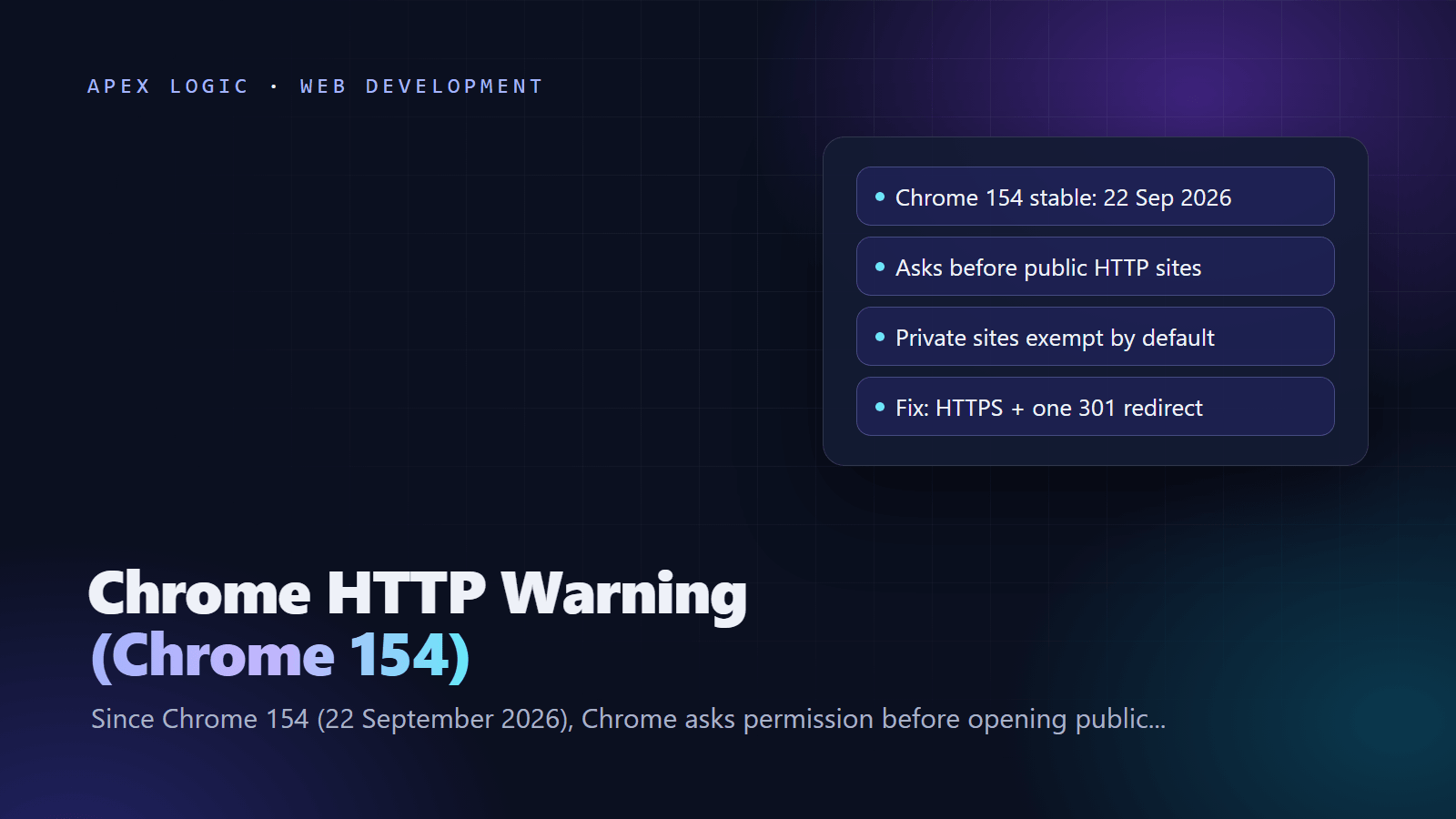
Updated 18 October 2026. Chrome 154, stable since 22 September 2026, asks visitors for permission before it opens a public site over plain HTTP; this checklist shows how to check and fix your site.
Since Chrome 154, stable on 22 September 2026, Chrome has Always Use Secure Connections switched on by default. Chrome first tries HTTPS for every public site. If a site does not support it, Chrome shows a warning and asks the visitor for permission before the first visit, and the address bar marks the page Not Secure. Private addresses are excluded: local IPs such as 192.168.0.1, single-label hostnames and shortlinks like intranet/.
The fix has not changed, but it is now urgent for any page or hostname still on HTTP: put a valid certificate on every hostname, send one 301 redirect from HTTP to HTTPS, and update the links you control. The 12-step checklist below covers it, with commands for nginx, Apache, Cloudflare and WordPress, plus the certificate renewal changes coming in 2027.
Chrome 154 HTTP warning at a glance
| Question | Answer, as of 18 October 2026 |
|---|---|
| What changed | The Always Use Secure Connections setting is on by default for public sites |
| Version and date | Chrome 154, stable release on 22 September 2026 |
| What visitors see | A warning that asks for permission before the first visit to a public site without HTTPS, then Not Secure in the address bar |
| How often | Not repeatedly for sites a person visits regularly; mainly for new or not recently visited sites |
| Excluded by default | Private sites: local IP addresses, single-label hostnames, shortlinks like intranet/ |
| User control | Settings, Privacy and security, Security, Always use secure connections |
| Admin control | The HttpsOnlyMode enterprise policy |
| Your fix | HTTPS on every hostname, one 301 redirect, updated links, automated certificate renewal |
What changed in Chrome 154, and why it came early
Google announced the plan on 28 October 2025: switch on Always Use Secure Connections for public sites, first for people who use Enhanced Safe Browsing in Chrome 147 (April 2026), then for everyone in Chrome 154. That post gave October 2026 for Chrome 154. It arrived on 22 September instead, because Chrome moved from a four-week to a two-week release cycle with Chrome 153 on 8 September 2026. The Chrome 154 release notes list the change as "Ask before HTTP on by default."
Google's reasoning: HTTPS use in Chrome has hovered around 95 to 99 percent since about 2020, and the plain HTTP connections that remain can be read or changed by anyone on the network path. In Google's experiments, warnings stayed well under 3 percent of navigations and the median user saw fewer than one warning a week, partly because many HTTP links already redirect to HTTPS.
Is your site affected? A two-minute check
Run this for every hostname you use, with and without www:
curl -sI http://example.com/ | grep -iE "^(HTTP|location)"
curl -sI http://www.example.com/ | grep -iE "^(HTTP|location)"
curl -sI https://example.com/ | grep -iE "^HTTP"
Good: the HTTP requests return 301 with a Location: https://... header, and the HTTPS request returns 200. A problem: a 200 over HTTP with no redirect, a redirect to another HTTP address, a 302 where you meant a permanent move, or a certificate error on HTTPS. You can also open the http:// address in Chrome 154 or later: if Chrome loads the HTTPS version, that hostname is fine; if you see the warning, it has no working HTTPS.
Check when your certificate expires:
echo | openssl s_client -servername example.com -connect example.com:443 2>/dev/null | openssl x509 -noout -enddateThe 12-step fix checklist
1. List every hostname you use
Include the apex domain, www, and subdomains such as shop, book, help and blog, plus old campaign domains and any address printed on flyers, vehicles or QR codes. Each one needs working HTTPS or a redirect to a hostname that has it. Our website launch checklist covers HTTPS, DNS and the rest of a go-live review.
2. Put a valid certificate on each hostname
Most hosts and CDNs issue free certificates from a control panel. On your own server, Certbot from the EFF requests and installs Let's Encrypt certificates, and most Certbot installs set up automatic renewal:
sudo certbot --nginx -d example.com -d www.example.com
sudo certbot renew --dry-run
Use --apache instead of --nginx on Apache. If you are still choosing where to host, our comparison of VPS, serverless and managed hosting explains what each option leaves you to manage, certificates included.
3. Redirect HTTP to HTTPS with one 301
# nginx: send both hostnames to the canonical HTTPS address
server {
    listen 80;
    server_name example.com www.example.com;
    return 301 https://example.com$request_uri;
}
# Apache: in the virtual host or .htaccess (needs mod_rewrite)
RewriteEngine On
RewriteCond %{HTTPS} off
RewriteRule ^ https://%{HTTP_HOST}%{REQUEST_URI} [L,R=301]On Cloudflare, check that the SSL/TLS encryption mode is not Off, then turn on Always Use HTTPS on the Edge Certificates page. Cloudflare advises against also redirecting at your origin server, which can cause redirect loops, and says not to use the setting if only part of your site supports HTTPS. Aim for one hop from any old address to the final HTTPS URL.
4. Update the site address in your CMS
In WordPress, set both WordPress Address (URL) and Site Address (URL) under Settings, General, to the https:// address. Then update old links stored in the database with WP-CLI. Back up the database, run a dry run first, and skip the guid column as the WP-CLI documentation shows:
wp search-replace 'http://example.com' 'https://example.com' --skip-columns=guid --dry-run
wp search-replace 'http://example.com' 'https://example.com' --skip-columns=guid
To force HTTPS for logins and the admin area, WordPress documents adding define( 'FORCE_SSL_ADMIN', true ); to wp-config.php.
5. Fix mixed content
An HTTPS page that loads HTTP resources has mixed content. Per MDN, browsers upgrade HTTP images, audio and video to HTTPS and block the rest, including scripts, stylesheets, iframes, web fonts and fetch requests, so a forgotten http:// script can break a page without any warning visitors can see. Fix the URLs at the source, check the browser console page by page, and add this header as a safety net while you clean up:
Content-Security-Policy: upgrade-insecure-requests6. Update canonicals, sitemaps and structured data
Canonical tags, hreflang, XML sitemaps, Open Graph tags and URLs inside structured data should all use https://. When every signal points to the same HTTPS address, search engines have an easy choice of canonical URL. Our SEO checklist for a new website and structured data guide cover the details.
7. Update links you control elsewhere
Your Google Business Profile, social media bios, email signatures, newsletter templates, ad destination URLs, directory listings and QR codes. A redirect catches old links, but every direct HTTPS link saves a hop and still works if a redirect is ever misconfigured.
8. Check forms, embeds and payment pages
Look for forms that post to an http:// address, third-party widgets embedded over HTTP, and old booking or payment pages on separate hostnames. These often live outside the main CMS and are easy to miss.
9. Add HSTS once HTTPS is stable
The Strict-Transport-Security header tells browsers to use HTTPS for your domain without trying HTTP first. Browsers ignore it when it arrives over HTTP, so send it on HTTPS responses only. Start with a short max-age while you test, then raise it to a year:
Strict-Transport-Security: max-age=300
Strict-Transport-Security: max-age=31536000; includeSubDomains
Only add includeSubDomains when every subdomain works over HTTPS. Preloading through hstspreload.org needs a max-age of at least one year plus includeSubDomains and is hard to undo, so treat it as a final step. Our guide on how to secure a web application covers the other security headers.
10. Automate certificate renewal
Certificates are getting shorter, so manual renewal will not keep up. Under CA/Browser Forum ballot SC-081, approved in April 2025, the maximum lifetime of a public TLS certificate falls in three steps:
| Certificates issued from | Maximum lifetime |
|---|---|
| 15 March 2026 | 200 days |
| 15 March 2027 | 100 days |
| 15 March 2029 | 47 days |
Let's Encrypt announced on 7 October 2026 that it will issue 64-day certificates by default from 10 February 2027, with 64-day certificates in its staging environment from 14 October 2026. It advises using an ACME client that supports ACME Renewal Information (ARI), replacing hard-coded renewal intervals such as 60 or 80 days with renewal at about two-thirds of the lifetime, and alerting on failed renewals. With Certbot, confirm that a scheduled task runs certbot renew, for example with systemctl list-timers.
11. Monitor expiry and redirects
Add an uptime check that requests both the http:// and https:// addresses and alerts before a certificate expires. Run the curl and openssl checks above after every hosting, DNS or CDN change, since those are the moments redirects and certificates usually break.
12. Re-test in Chrome and Search Console
Open each old http:// address in Chrome 154 or later and confirm it lands on HTTPS with no warning. In Search Console, run URL Inspection on your key pages to confirm Google picked the HTTPS URL as canonical, and make sure you have a Domain property or an https:// URL-prefix property.
Intranets, devices and internal tools
The default covers public sites only. Private sites, such as local IP addresses, single-label hostnames and shortlinks like intranet/, do not trigger the warning unless a user picks the stricter option that also warns on private sites. Google's post notes that an HTTPS page can still reach devices on a local network once the user grants the local network access permission. IT teams can set the behavior for managed browsers with the HttpsOnlyMode enterprise policy named in the Chrome 154 release notes.
Two more Chrome changes for your calendar
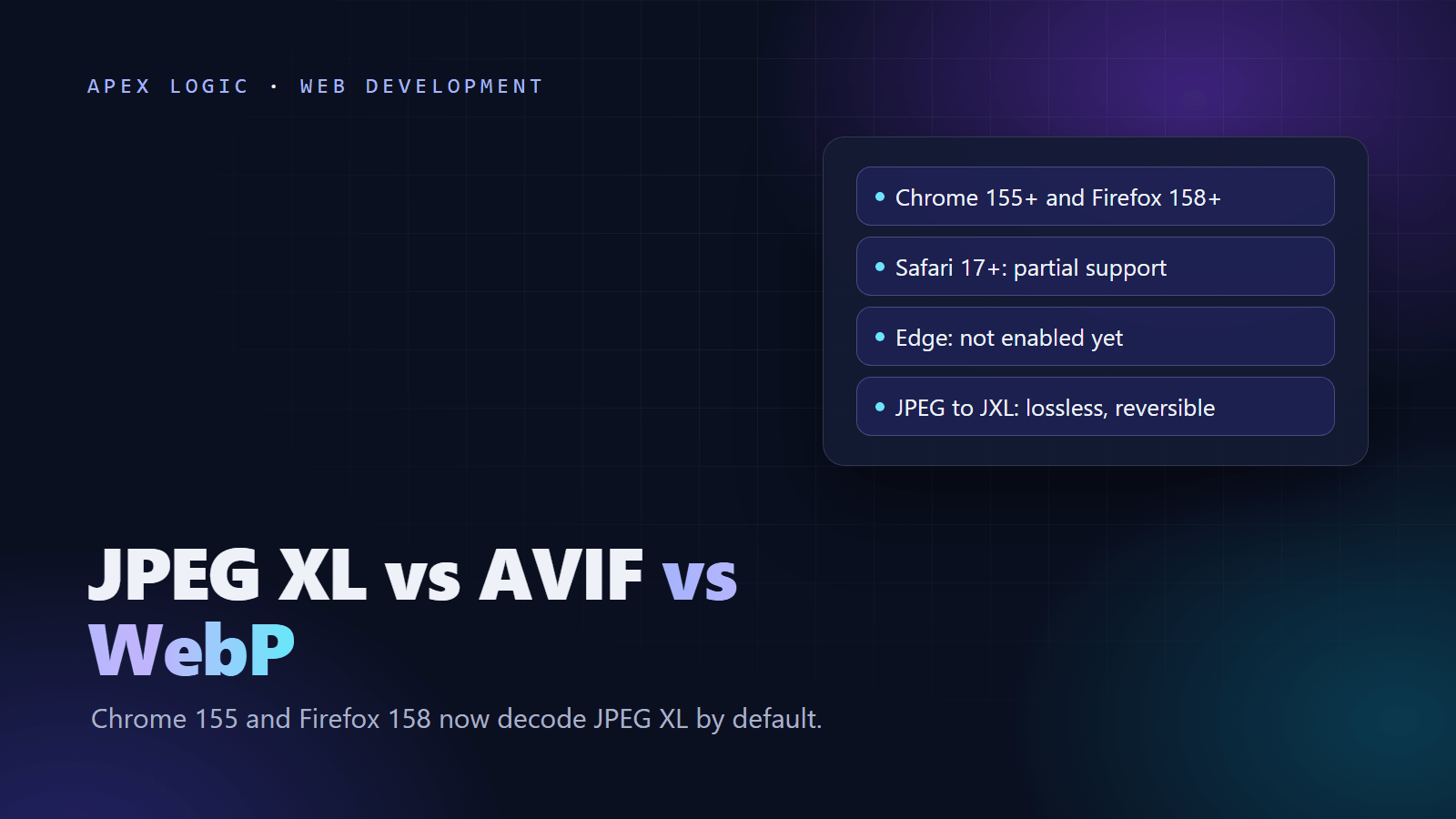
- Chrome 155 (6 October 2026): JPEG XL. Chrome now decodes JPEG XL images. Read our JPEG XL vs AVIF vs WebP comparison before you change image formats.
- Chrome 158 (17 November 2026): XSLT removal. Chrome's deprecation page says XSLT stops working in stable Chrome in version 158, except for sites in the origin trial or browsers under the enterprise policy, which keep it until Chrome 176 on 17 August 2027. If your XML sitemap or RSS feed uses an XSL stylesheet so it looks tidy in a browser, people will stop seeing that view; the XML file itself does not change. Apps that transform XML in the browser with XSLTProcessor need a server-side or JavaScript replacement. XML styled with CSS keeps working.
If you would rather hand this off, HTTPS fixes, redirects and certificate automation are routine web development work for us, quoted at a fixed price. Our website maintenance cost guide explains what ongoing care like this costs. Send us your list of hostnames and we will tell you what needs fixing.
Chrome HTTP warning FAQ
Why does Chrome warn before opening my website?
Your site, or the hostname in the link someone followed, does not work over HTTPS. Since Chrome 154, stable on 22 September 2026, Chrome tries HTTPS first and, when a public site cannot load securely, asks the visitor for permission before the first visit. Install a valid certificate on that hostname and redirect HTTP to HTTPS with a 301. Once HTTPS works, Chrome loads the secure version and the warning stops.
Can visitors still open an HTTP site in Chrome?
Yes. The warning asks for permission rather than blocking the site, and Chrome does not keep warning about a site that a person visits regularly. People can also turn the setting off under Settings, Privacy and security, Security. But a security warning on someone's first visit is a poor first impression for a business, so the practical answer is to move to HTTPS rather than count on visitors clicking through.
Does the warning apply to intranet sites and local devices?
Not by default. Chrome excludes private sites such as local IP addresses like 192.168.0.1, single-label hostnames and shortlinks like intranet/. Users can choose a stricter mode that warns on private sites too, and organizations can manage the behavior with the HttpsOnlyMode enterprise policy. Internal tools still benefit from HTTPS, but on default settings they will not trigger the new public-site warning.
How do I get a free SSL certificate?
Most hosting control panels and CDNs issue free certificates in a few clicks. On your own server, Certbot can request a Let's Encrypt certificate and configure nginx or Apache for you, for example with certbot --nginx followed by your domain names. Whichever route you take, confirm that renewal is automatic, because maximum certificate lifetimes drop to 100 days in March 2027 and 47 days in March 2029.
How often will I need to renew certificates?
More often every year. Public TLS certificates issued since 15 March 2026 can last at most 200 days, falling to 100 days from 15 March 2027 and 47 days from 15 March 2029. Let's Encrypt moves its default to 64 days on 10 February 2027. Manual renewal is no longer realistic, so use an ACME client with automatic renewal, ideally one that supports ARI, and set an alert for failed renewals.
Is HTTPS enough to make my website secure?
No. HTTPS protects data in transit and removes the Chrome warning, but it does nothing about weak passwords, outdated plugins, injection bugs or exposed admin pages. Treat it as the baseline. Our guide on how to secure a web application covers the next layer, from input validation and login security to patching, secrets and rate limiting, in plain terms.
Sources
- Chrome for Developers: Chrome 154 release notes
- Google: HTTPS by default (28 October 2025)
- Chrome for Developers: The two-week release cycle is here
- Google Chrome Help: Manage Chrome safety and security
- Chrome for Developers: Removing XSLT for a more secure browser
- Let's Encrypt: 64-day certificate lifetimes by default (7 October 2026)
- CA/Browser Forum: Ballot SC-081v3
- DNSimple: SSL certificate validity changes 2026 to 2029
- Certbot documentation: User guide
- Cloudflare: Always Use HTTPS
- MDN: Mixed content
- MDN: Strict-Transport-Security
- WP-CLI: wp search-replace
- WordPress Advanced Administration: HTTPS

Loading comments...